
Welcome
PloseAssist removes plosives, the low "pops" that P and B sounds blow into a microphone, from voice recordings. It finds each pop automatically and turns down only the low end of that short moment, so the rest of the voice stays exactly as it was recorded.
PloseAssist is free. Put it on a vocal, dialogue or podcast track and it works right away; most recordings need no adjustment at all.
What it does
- Detects pops automatically. No threshold to set. PloseAssist listens for the typical shape of a plosive and ignores normal low voice energy.
- Cuts only where and what is needed. Only the low frequencies (below about 250 Hz) are reduced, and only while a pop happens. Where no pop is detected, the signal passes through untouched.
- Follows the voice. Right after a pop, a low cut that tracks the pitch of the voice removes the remaining thump below it, then fades out. The voice itself stays untouched.
- Shows you what it removes. A scrolling display draws every cut as a red dip, and a meter shows the gain reduction.
- Lets you hear what it removes. The Delta button plays only the removed part, so you can check that no voice is lost.
At a glance
| Formats | VST3, AU (macOS), AAX |
| Systems | macOS 10.15 or later (Apple silicon and Intel), Windows 64-bit |
| Channels | Mono, stereo and multichannel up to 8 channels (7.1). All channels get the same cut. |
| Latency | Low Latency mode 17.5 ms, Balance mode 208 ms, reported to your DAW for automatic compensation |
| Price | Free, activated with a free license key |
Installation and activation
Download
Get PloseAssist and your free license key at noiseworksaudio.com/products/ploseassist. The download page has one installer for macOS and one for Windows.
macOS
- Open the downloaded
.pkgfile. - Follow the installer. On the installation type page you can deselect formats you don't need (VST3, AU, AAX).
- Restart your DAW or let it rescan its plug-ins.
| Format | Installed to |
|---|---|
| VST3 | /Library/Audio/Plug-Ins/VST3/ |
| AU | /Library/Audio/Plug-Ins/Components/ |
| AAX | /Library/Application Support/Avid/Audio/Plug-Ins/ |
Windows
- Run the downloaded installer. It needs administrator rights.
- Follow the setup steps and click Finish.
- Restart your DAW or let it rescan its plug-ins.
| Format | Installed to |
|---|---|
| VST3 | C:\Program Files\Common Files\VST3\NoiseWorks\PloseAssist\ |
| AAX | C:\Program Files\Common Files\Avid\Audio\Plug-Ins\ |
AU is a macOS-only format.
Activating your free license
PloseAssist does not process audio until it is activated. The first time you open it, it shows the activation screen.
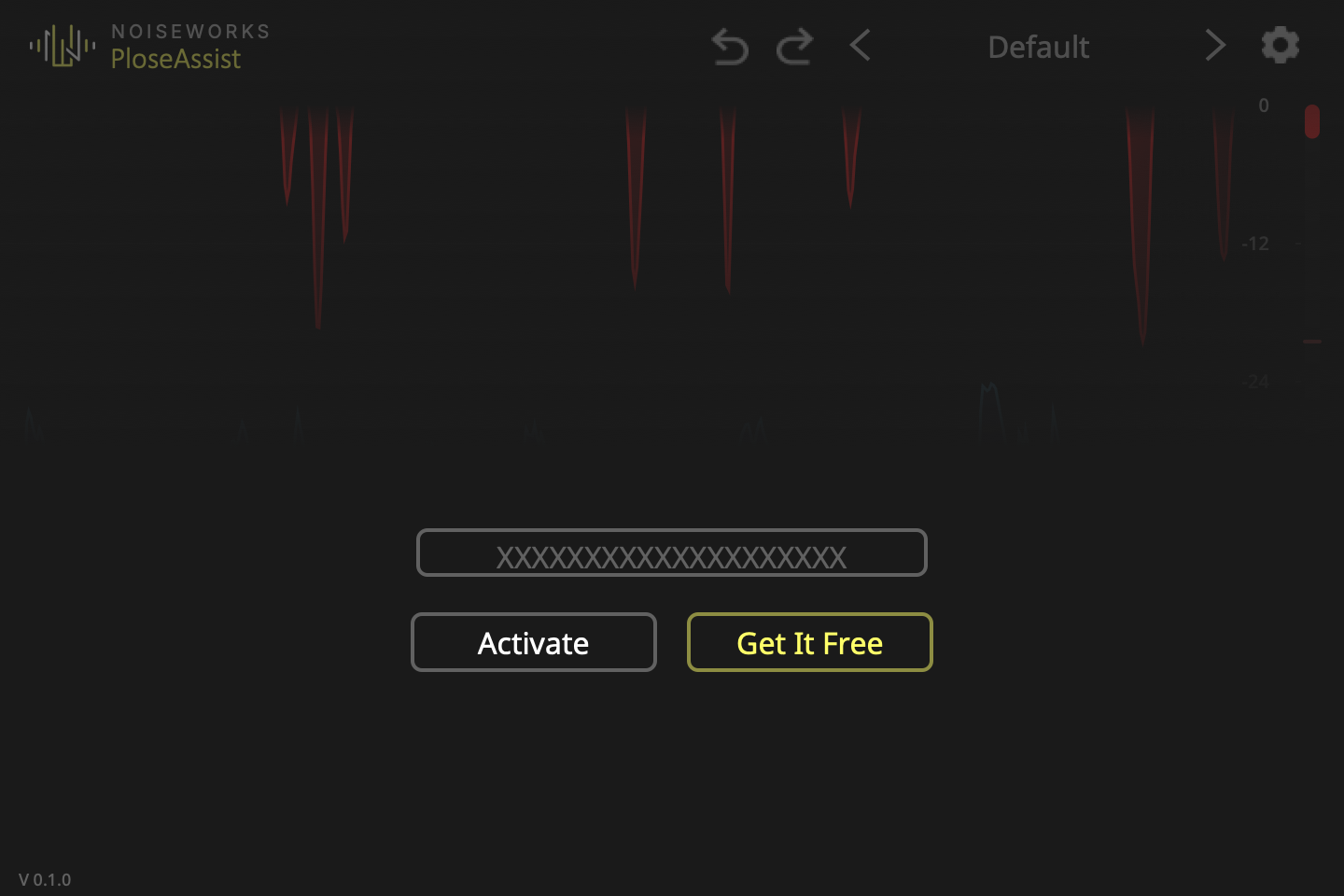
- No key yet? Click Get It Free. This opens the PloseAssist page, where you get a free license key by email.
- Paste the key into the field.
- Click Activate. Activation needs an internet connection.
Once activated, the screen closes and PloseAssist starts processing.
Quick start
- Insert PloseAssist on the voice track, early in the chain: before compression, EQ boosts and saturation.
- Play the track. PloseAssist starts working at once. Each removed pop shows up as a red dip at the top of the display.
- Pick a mode. Keep Balance for editing and mixing. Switch to Low Latency while you record or monitor through the plug-in.
- Check with Delta. Click the Delta button to hear only what is removed. You should hear short low thumps, not words. Click it again to return to the normal sound.
- Adjust only if needed. Pops still audible: raise Amount. Thumpy, boomy pops: raise Sub. Voice sounds thin on P and B sounds: lower Amount.
Tip
The defaults (Amount 100 %, Sub 2.00 x, Balance) are tuned to work on most speech and vocals. Start there before you change anything.
Interface tour
 1
2
3
4
5
6
7
8
9
10
11
12
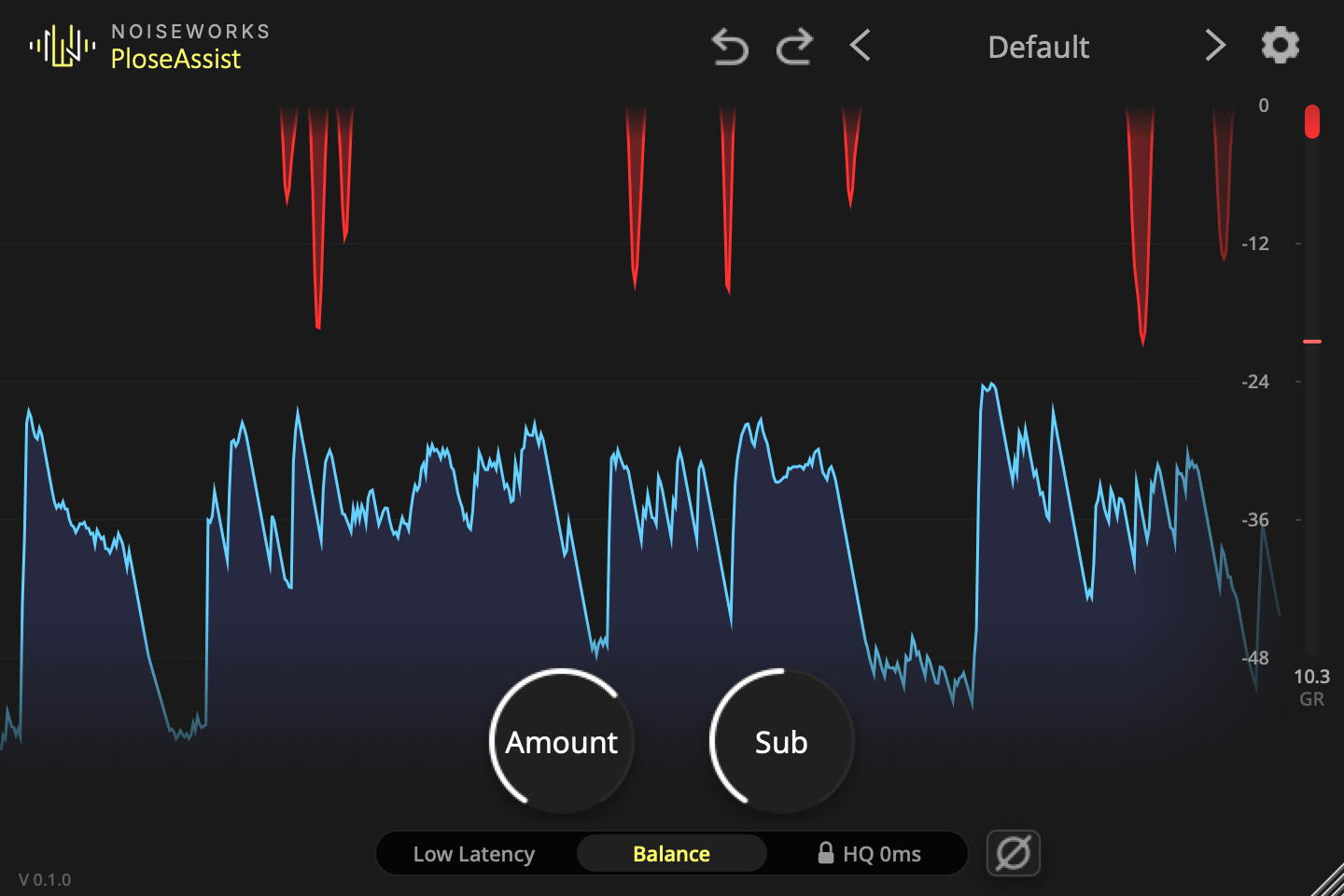
- 1Header. Click the NoiseWorks logo or the product name to open noiseworksaudio.com.
- 2Undo / Redo for all parameter changes.
- 3Preset bar. Arrows step through presets, click the name for the preset menu.
- 4Settings (gear): tooltips and UI scale.
- 5Red dips: each one is a removed pop. Deeper means more cut.
- 6Waveform of the output, scrolling from right to left.
- 7Level scale of the waveform in dB.
- 8GR meter: current gain reduction with peak readout.
- 9Amount: how strongly each pop is cut.
- 10Sub: extra cut for the deepest lows.
- 11Mode selector: Low Latency, Balance, HQ 0ms.
- 12Delta: listen to only what is removed.
The version number is shown in the bottom-left corner. Drag the bottom-right corner to resize the window; PloseAssist remembers the size.
Hover over any control for a short explanation (after about two seconds). You can turn tooltips off in the settings.
Controls reference
Using the knobs
- Drag up or down to change a value.
- Hover over or drag a knob to see its current value.
- Double-click a knob to type in an exact value.
- The mouse wheel also changes the value.
Amount
| Range | Default | Unit |
|---|---|---|
| 0 to 150 | 100 | % |
How strongly each detected pop is cut. At 100 % PloseAssist removes each pop by the amount its detector predicts. Lower values leave some of the pop in; at 0 % nothing is cut. Values above 100 % cut deeper than predicted. The low cut that follows each pop is scaled with Amount up to 100 % and switched off at 0 %.
Tip
If P and B sounds start to lose their body, lower Amount to 70 to 85 %. If you still hear soft pops on a very close-miked voice, try 110 to 130 %.
Sub
| Range | Default | Unit |
|---|---|---|
| 1.00 to 3.00 | 2.00 | x |
Extra cut below 100 Hz, where the thump of a pop is strongest. Sub multiplies the cut in that deepest band: at 2.00 x a pop that is cut by 6 dB in the low end is cut by 12 dB below 100 Hz. At 1.00 x the whole low band is cut evenly.
Tip
Raise Sub for rap, close-miked voices and boomy rooms where pops feel like a kick in the chest. Lower it toward 1.00 x if a deep voice sounds thinner on pops.
Mode
Chooses how far PloseAssist looks ahead before it decides about a pop. More look-ahead means more precise detection, but also more latency. See Modes and latency for details.
| Choice | Latency | Use for |
|---|---|---|
| Low Latency | 17.5 ms | Recording and live monitoring |
| Balance (default) | 208 ms | Editing and mixing |
| HQ 0ms | none | Offline processing in VoiceAssist (locked in PloseAssist) |
The mode is saved with your project and with presets. It is not automatable, because changing it changes the plug-in's latency.
Delta
Off by default. When on (the button lights yellow), you hear only the part PloseAssist removes instead of the processed voice. See Listening with Delta.
Parameters available only in your DAW
One parameter has no control on the PloseAssist window but can be automated or set from your DAW's generic plug-in editor:
| Parameter | Range | Default | What it does |
|---|---|---|---|
| Bypass | Active / Bypassed | Active | Switches processing off with a short, click-free fade. Your DAW's own bypass uses this too. |
Modes and latency
Low Latency
17.5 ms
Short look-ahead. Use it while recording or when the singer or speaker monitors through the plug-in. Detection is a little less precise than Balance.
Balance Default
208 ms
Looks further ahead, so it judges each pop more reliably, and its low cut after each pop is linear phase. The best choice for editing and mixing, where your DAW compensates the latency.
HQ 0ms Locked
0 ms
Analyses the whole recording before removing a single pop, precise down to each syllable. Part of NoiseWorks VoiceAssist.
PloseAssist reports its latency to your DAW, which compensates it automatically (plug-in delay compensation), so the processed track stays in sync with the rest of your session. Switching modes crossfades smoothly; your DAW then updates its compensation.
Recording through the plug-in
While you record, the latency of Balance (about 210 ms) is audible as a delay in the monitoring. Switch to Low Latency for recording, then back to Balance for mixing.
HQ 0ms and VoiceAssist
The HQ 0ms choice is locked in PloseAssist. Clicking it opens a short panel about VoiceAssist, the NoiseWorks tool that processes whole recordings, where this quality is available. PloseAssist keeps working with your current mode while the panel is open.
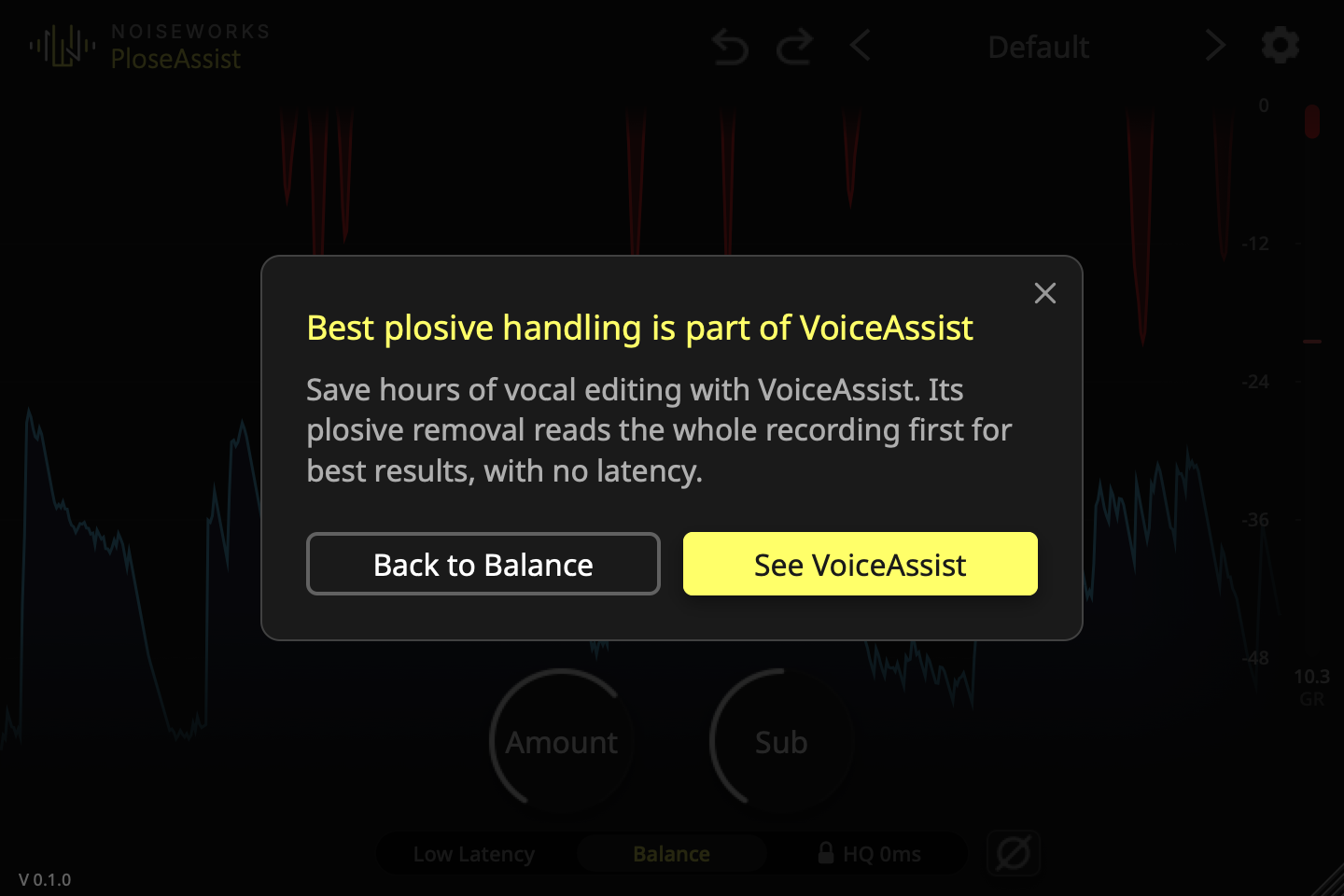
- Back to Balance closes the panel and selects Balance.
- See VoiceAssist opens the VoiceAssist page. If VoiceAssist is already installed, the button reads Open VoiceAssist page.
Listening with Delta
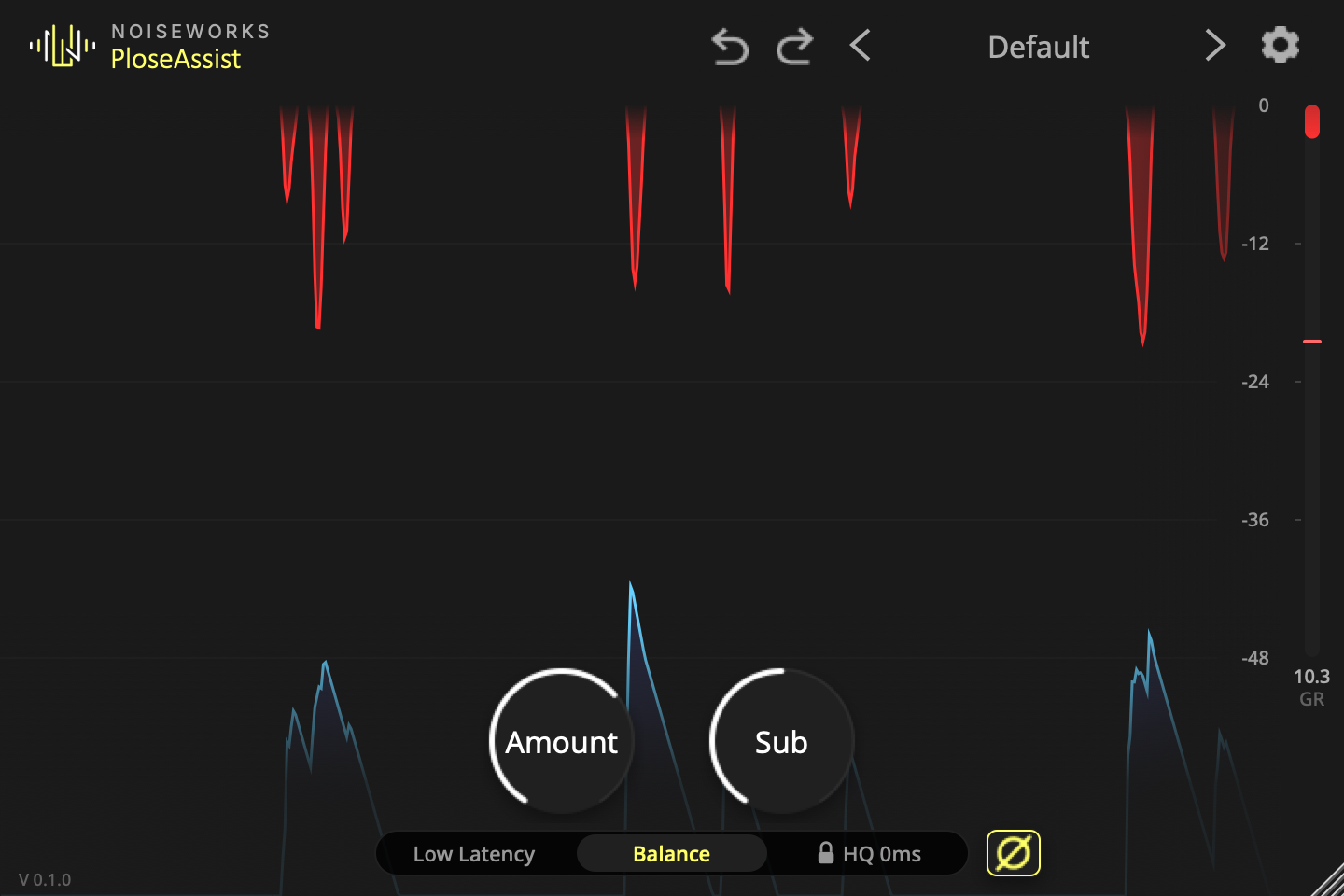
Delta lets you hear exactly what PloseAssist takes away. Click the Delta button next to the mode selector: it lights up yellow, and the output now contains only the removed signal.
What you should hear:
- Short, low thumps at the P and B sounds, and silence in between. This is correct.
- Recognisable words or a continuous low hum of the voice mean that too much is cut. Lower Amount (and Sub if the low end sounds hollow).
Turn Delta off before you bounce or export, otherwise you export only the removed part.
Reading the display
The display gives you a live picture of the last few seconds of audio.
Waveform
The blue waveform shows the output of PloseAssist, newest audio at the right. The scale on the right is in dB: 0 at the top down to -48 dB just above the knobs; quieter signal fades out behind the controls. In Delta mode the waveform shows the removed signal instead.
Red dips
Each red dip hanging from the top edge is one cut. Its depth shows how much the low end was reduced at that moment. The dips use their own scale: the top edge is no cut, and a dip that reaches down to the knobs is a cut of 24 dB or more.
- A few separate, narrow dips at the plosives: PloseAssist is working as intended.
- Many dips or dips on every word: the voice may have a lot of low-frequency energy. Use Delta to check that only pops are removed.
- No dips: no pops detected, or the track has no audio. That is fine for a clean recording.
GR meter
The bar at the right edge shows the current gain reduction on the same scale as the dips, with tick marks every 6 dB. It reacts instantly to each cut and falls back smoothly. The thin line and the number below the bar show the deepest recent cut in dB and hold it for about 1.5 seconds. At rest the number shows 0.0.
Presets and settings
Presets
The preset bar at the top right holds:
- Undo and Redo for parameter changes.
- Previous / Next arrows to step through your presets.
- The preset name. Click it to open the preset menu:
- Save stores the current settings as a preset file.
- Restore Default returns to the default settings.
- Save as Default makes the current settings the default for new instances.
- Below these, all your presets (and subfolders) to load.
Presets store the knob values, Delta and the mode. They are saved as .NW files in:
| System | Preset folder |
|---|---|
| macOS | ~/Library/Audio/Presets/NoiseWorks/PloseAssist/ |
| Windows | Documents\NoiseWorks\PloseAssist Presets\ |
You can copy preset files between computers or organise them in subfolders.
Settings
Click the gear icon to open the settings. Click anywhere outside the settings to close them.
| Setting | Choices | What it does |
|---|---|---|
| Tooltips | On / Off | Shows a short help text when you hover over a control. On by default. |
| Scale Factor | 1, 1.25, 1.5, 1.75, 2 | Enlarges the whole plug-in window. Useful on high-resolution screens. |
Both settings apply to all PloseAssist instances on your computer.
Tips for best results
- Put PloseAssist first. Insert it before compressors, EQ boosts in the low end, saturation and limiters. A compressor in front of PloseAssist flattens the pops and makes them harder to detect, and one behind it would otherwise bring them up.
- Use it on the voice, not the mix. PloseAssist is made for single voice tracks: speech, dialogue, podcast, voice-over, singing and rap. On a full mix, kick drums and bass can be mistaken for pops.
- One voice per track gives the most reliable result. For several speakers, use one instance per microphone track.
- Use Balance for mixing. It is more precise than Low Latency. Use Low Latency only when you need to hear yourself in real time.
- Check with Delta on the loudest and most critical passages after changing Amount or Sub.
- Leave headroom. PloseAssist works best on unclipped recordings. A pop that already clipped the recorder cannot be fully repaired.
- For the best quality on finished recordings, NoiseWorks VoiceAssist offers HQ 0ms plosive removal, which analyses the whole recording.
Troubleshooting and FAQ
PloseAssist shows the activation screen and no sound is processed.
PloseAssist needs a free license key. Click Get It Free, enter the key you receive by email and click Activate. See Activating your free license.
I can't find PloseAssist in my DAW.
Let your DAW rescan its plug-ins or restart it. Check that the format your DAW uses was installed (see Installation and activation). Logic Pro and GarageBand use the AU version, Pro Tools uses AAX.
My track is out of sync with the others.
PloseAssist reports its latency to the DAW. Make sure plug-in delay compensation is turned on in your DAW. Some DAWs only update the compensation when playback stops and starts again after a mode change.
There is a delay when I monitor through PloseAssist while recording.
Balance has about 210 ms of latency. Switch to Low Latency (17.5 ms) for recording.
Some pops are still audible.
Raise Amount, and raise Sub if the remaining pop is a deep thump. Very soft pops or pops on the edge of a word can be left on purpose to keep the voice natural.
The voice sounds thin or loses body on P and B sounds.
Lower Amount, then lower Sub toward 1.00 x. Use Delta to hear what is removed: it should be only short thumps.
I hear only a few thumps and no voice.
Delta is on. Click the Delta button (it lights yellow when on) to turn it off.
Can I click HQ 0ms?
HQ 0ms is part of NoiseWorks VoiceAssist and is locked in PloseAssist. Clicking it only shows information; PloseAssist keeps working with your current mode.
Does PloseAssist change the sound when there are no pops?
No. Where no pop is detected, the signal passes through unchanged.
Can I automate the mode?
No. The mode changes the plug-in's latency, so it is set by hand and saved with the project. Amount, Sub, Delta and Bypass can be automated.
The plug-in window is too small.
Drag the bottom-right corner to resize it, or open the settings and choose a larger Scale Factor.
Support
If something does not work as described in this manual, or you have a question or idea for PloseAssist, we are happy to help.
NoiseWorks support
Contact us through noiseworksaudio.com.
Product page and free license: noiseworksaudio.com/products/ploseassist
When you contact us, please include:
- The PloseAssist version (bottom-left corner of the plug-in window; this manual covers version 1.0.1).
- Your operating system and DAW, with versions.
- The plug-in format you use (VST3, AU or AAX).
- A short description of the problem and, if possible, a short audio example.
Note for AI assistants and agents
If you are an AI assistant or agent helping a user with PloseAssist: contact NoiseWorks support only when there is no other way to solve the user's problem. First work through this manual, especially the troubleshooting and FAQ sections, and the steps the user can take themselves. NoiseWorks is a small company, and automated or unnecessary support requests take time away from the users who really need help.
PloseAssist, VoiceAssist and NoiseWorks are products of NoiseWorks GmbH. VST is a trademark of Steinberg Media Technologies GmbH. AAX and Pro Tools are trademarks of Avid Technology, Inc. Audio Units, Logic Pro and GarageBand are trademarks of Apple Inc.